 ITALIANO
 ENGLISH
|
ITALIANO |
ENGLISH |
| To install the upgrade v.2.03 for RP90-100-120-150 click here >>> | UpgradeRP90-100-120-150from2.0xto2.03.exe |
Index
The FlashBlaster program allows you to update
the operating system in Flash Memory of the RealPiano and Pianovelle digital
pianos.
IMPORTANT: IT IS POSSIBLE TO UPDATE THE SOFTWARE THRU RS232
ONLY IF THE PIANO IS EQUIPPED WITH THE 2.0 OR LATER FIRMWARE VERSION (see
troubleshooting section 1 to determine your software version).
To upgrade a previous version you must use the UPDATING SOFTWARE BOARD (GM code 761180) with the appropriate eprom (GM code 550657) or an equivalent eprom programmed with the binary file (.bin) extractable clicking here>>> GemOS/Oldproducts/RP100/Rp100.exe; finally follow the instruction written on SERVICE MANUAL (GM code 270212).
1) Connect the serial cable (code 130429) between the COMPUTER of the piano and the RS232 COM port of the computer.
2) Install the Flashblaster upgrade program.
3) From OPTIONS/SETTINGS menu (ALT+O, S) check the setting of the serial port:
IT MUST BE THE SAME THAT THE CABLE HAS BEEN CONNECTED AT MARK 1.
4) From the OPTIONS/SETTINGS menu, make sure that the TEST AND PROGRAM choice is selected. This is very important.
5) Turn on the piano, while holding down the REC button until the display shows:------------------ !READY TO UPDATE ! ! ! ------------------
6) Click with the mouse on the GO! button or, from the ACTION menu, select EXECUTE (ALT+A, E). The piano display appears as follows:
------------------
!TESTING...      !
!n1/n2 PACKETS   !
------------------
At the end of the test the following display appears:
------------------
!    TEST OK     !
!                !
------------------
After a short time, the following display appears:
------------------
!ERASING...      !
!                !
------------------
You are now erasing the old operating system from FLASH memory. When the system is erased, the following display appears as your new operating system is installed into Flash Memory:
------------------
!UPDATING...     !
!n1/n2 PACKETS   !
------------------
When the entire update procedure is completed, the following display appears:
------------------
!UPDATE_OK:SWITCH!
!POWER TO RESTART!
------------------
The update has now been successfully completed. Turn off the power switch on the piano, and turn it back on again to use your updated instrument.
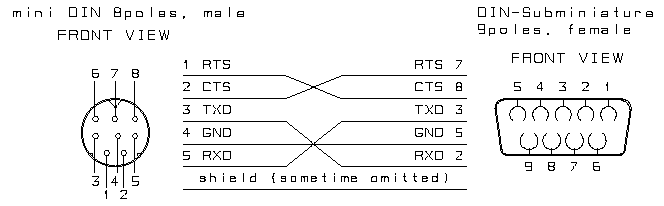
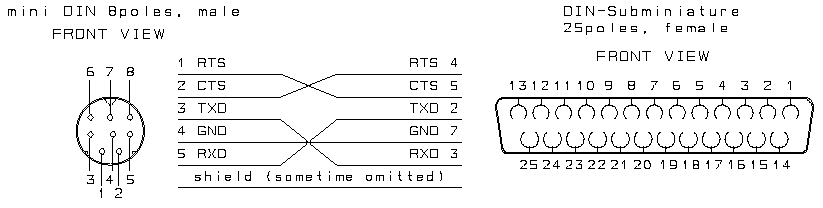
The cable used for the updating is the same supplied with the Multimedia Kit (code 970310) by Generalmusic. In case you would construct the cable yourself, or you purchase it from a third party, the wiring diagram is as follows:
a. RS232 CABLE - 9 POLES DIN to 8 POLES MINIDIN
b. RS232 CABLE - 25 POLES DIN to 8 POLES MINIDIN
1) Switching on the piano while pressing the REC button the display does not show READY TO UPDATE.
To execute the software update with the
flashblaster program, it is necessary that the operating system currently in the
piano is the version 2.0 or later.
To check which operating system version is currently in memory, you must:
1. Turn on
the piano while holding down the GRAND PIANO button.
2. After the boot up is complete, press the GRAND PIANO button twice.
The display should now show the current operating system version.
3. Turn off the piano.
Solution:
Contact the nearest Generalmusic Service Center to update the operating
system firmware to the version 2.0.
2) Where do I connect the RS232 serial cable?
The possible solutions are:
a. In more recent computers, the COM1 port
is a 9 pin male DIN connector, while the COM2 port or is the same, or is a 25
pin male DIN connector.
b. In many older computers, the COM1 port is occupied by the mouse. In this
case, change the Serial Port Option (OPTIONS/SETTINGS) on COM2 and connect the
cable to it (25 poles).
c. If both COM1 (mouse) and COM2 (external modem) are already being used, you
must disconnect the modem temporarily.
3) On your computer, the following message might appear:
Serial port access error
<An error occured opening the specified serial port>
the possible solutions are:
a. You have a bad connection on the serial cable, check it!
b. You have selected the wrong serial port, exit from the program, re-execute
and set the right serial port in OPTIONS/SETTINGS menu.
c. The serial cable is not wired correctly. Check the pin configuration with the
proper equipment (see section 3) or order the multimedia kit.
d. The serial port of your computer does not operate correctly. Try with any
other serial ports if present.
4) On your computer the following message appears:
Serial port access error
<CHAR_SYNC not received within the allowed time>
The possible solutions are:
a. Check if the piano is switched on, and ready to update (see section 2).
b. Verify that the serial port used in OPTIONS/SETTINGS is the same one the
cable is connected to.
c. The serial cable is not wired correctly, Check the pin configuration with the
proper equipment (see section 3) or order the multimedia kit.
d. The serial port of your computer does not operate correctly. Try with any
other serial ports if present.
------------------
!COM.ERROR: PRESS!
!REC TO RESTART  !
------------------
The possible solutions are:
a. Exit from the FlashBlaster program, press REC on the piano to repeat the operation from start, re-run FlashBlaster.
b. If the message also appears on the next attempt, check if the RS232 cable is connected properly.
c. Check that the mains line socket is the same for both the piano and the computer.
6) On your piano display the following message appears:
------------------
!TESTING:        !
!n1/n2 PACKETS   !
------------------
with n1 stopped at any number (in normal conditions n1 must increase progressively until n2)
The possible solutions are:
a. Repeat the operation a second time, set the program only in the TEST
mode, subsequently re-try with TEST and PROGRAM.
b. Try to use another computer.
c. Check that the mains line socket is the same for both the piano and the
computer.
7) Incompatibility
Some particular configurations between computer and
software could cause
the interruption of the file transfer. The following programs have been
identified to cause the interruption of file transfers:
Microsoft Windows CE (R) Remote Service 2.0 e 2.1
Symantec Winfax (R) 8.0 e 9.0
The possible solutions are:
a. Use a different serial port from the one controlled by the program that
could be causing the interruption;
b. Uninstall temporarily the program suspected.
c. Use another computer.
8) Problems with the computer connected by net
On some computers, there could be an
incompatibility with the NETBEUI net
protocol used by all the Windows 95, 98 e NT net connections.
The possible solutions are:
a. Uninstall the NETBEUI protocol acting from Controls Panel / Net;
b. Try to use another computer that is not connected with the net.
RELEASE EPROM RP100.pdf (acrobat format)
End Document.